Templates and styling
How to override any of the plugin's 11 templates from your theme, style job pages with CSS custom properties, and the developer hooks available.
All of the plugin’s front-end markup comes from 11 template files. You can override any of them from your theme, and plugin updates leave your copies alone.
Overriding a template
- Create a folder named
workablewpinside your theme, ideally a child theme:wp-content/themes/your-theme/workablewp/. - Copy the template you want to change from
wp-content/plugins/workablewp/templates/into that folder, keeping the same file name. - Edit your copy.
The plugin looks in your theme first and falls back to its own copy. Each template lists the variables it receives in the comment at the top of the file.
After a plugin update, compare your copies with the new originals. A template may gain a variable or a fix you want to carry over.
The templates
| File | What it renders |
|---|---|
jobs.php | The job list: count, the list itself, grouping and pagination. |
job-list-item.php | One job in the list. |
no-jobs.php | The message shown when no job matches, or none are open. |
jobs-filter-form.php | The search box and the department and location dropdowns. |
single-job.php | One job: title, meta, description and apply area. |
job-meta.php | The details box on a job: department, location, employment type, remote, posting date. |
apply-button.php | The Apply on Workable button. |
application-form.php | The on-site application form: wrapper, captcha, consent, submit button. |
application-form-fields.php | The list of fields inside the application form. |
page-jobs.php | The full page around the job list at /jobs/. |
page-single-job.php | The full page around a single job. |
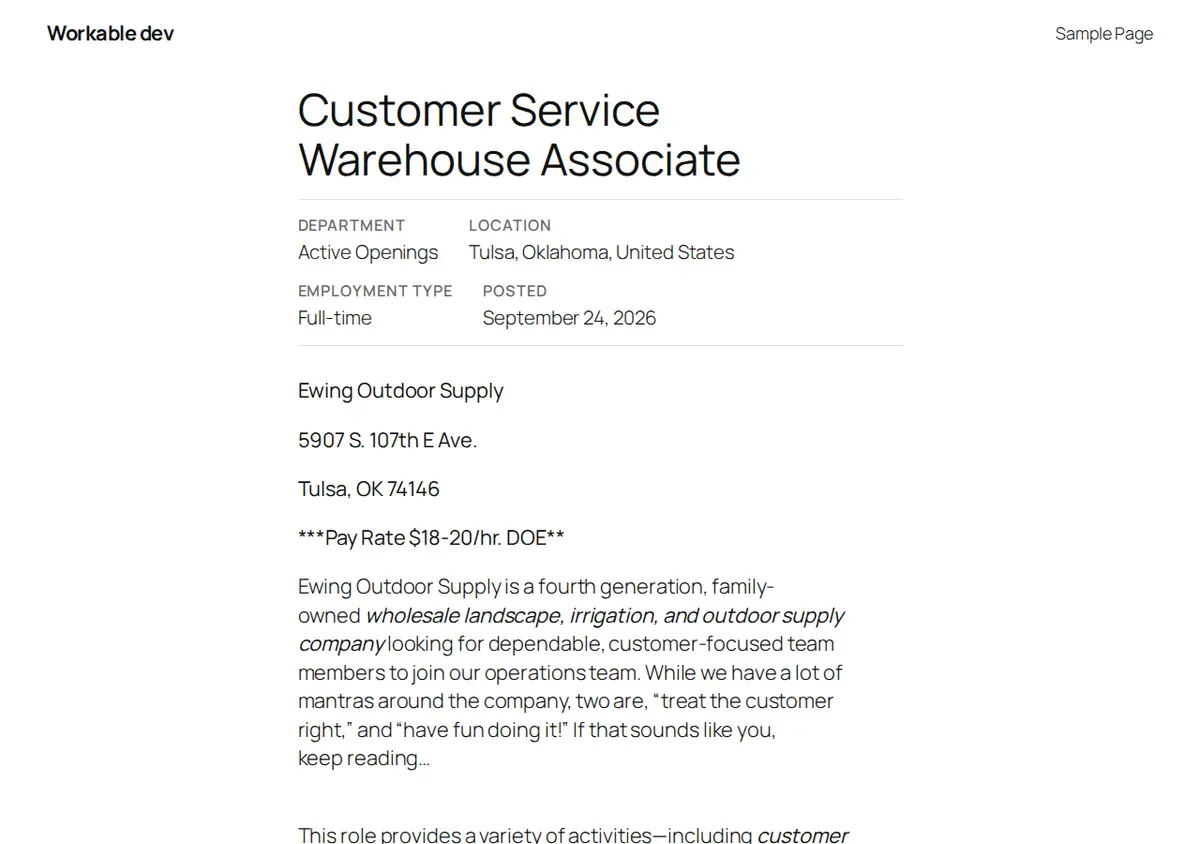
The two full-page templates
page-jobs.php and page-single-job.php build the whole page, including your theme’s header and
footer. On block themes they use the theme’s header and footer template parts.
To take over the whole page, you have two options:
- Override
workablewp/page-jobs.phporworkablewp/page-single-job.phpas above. - Or add a standard WordPress template for the
wkjb_jobpost type to your theme:archive-wkjb_job.phpfor the list andsingle-wkjb_job.phpfor a job. The plugin uses these when your theme has them.
Styling with CSS
Every element has a class starting with wkjb-, and everything the plugin prints sits inside a
.wkjb-root wrapper. The main classes:
| Class | Element |
|---|---|
.wkjb-jobs | The job list wrapper |
.wkjb-job-item | One job in the list |
.wkjb-filters | The filter form |
.wkjb-single | The single job wrapper |
.wkjb-job | A job’s content |
.wkjb-apply-button | The Apply on Workable button |
.wkjb-application | The application form |
.wkjb-pagination | Page links |
.wkjb-no-jobs | The empty message |
Colours, spacing and corners are CSS custom properties on .wkjb-root. Override them in one
rule in your theme’s stylesheet or in Appearance → Customize → Additional CSS:
.wkjb-root {
	--wkjb-accent: #0a5cff;          /* buttons and links */
	--wkjb-accent-contrast: #ffffff; /* text on the accent colour */
	--wkjb-border: #e2e2e2;
	--wkjb-muted: #6b6b6b;           /* secondary text */
	--wkjb-surface: transparent;     /* card background */
	--wkjb-radius: 4px;
	--wkjb-gap: 1rem;
	--wkjb-gap-lg: 2rem;
}
By default the accent colour follows your block theme’s contrast colour and the text on it
follows the theme’s base colour, so buttons match your theme out of the box.
Developer hooks
| Hook | Type | Use it to |
|---|---|---|
wkjb_locate_template | filter | Change which file is used for a template. Receives the path and the template name. |
wkjb_template_args | filter | Add or change the variables a template receives. Receives the arguments and the template name. |
wkjb_normalized_job | filter | Change a job as it is imported from Workable, before it is saved. Receives the job and Workable’s raw data. |
wkjb_normalized_post_job | filter | Change a job as it is read back from WordPress for display. |
wkjb_job_schema | filter | Change the JobPosting structured data for a job. |
wkjb_organization_name | filter | Change the og:site_name tag on job pages. The plugin prints its sharing tags only when no SEO plugin (Yoast, Rank Math, AIOSEO, SEOPress, Slim SEO) is active. |
wkjb_jobs_page_title | filter | Change the job list page title. Default “Careers”. |
wkjb_job_permalink | filter | Change a job’s link. |
wkjb_jobs_page_url | filter | Change the job list’s link. |
wkjb_apply_url | filter | Change where the Apply on Workable button points. |
wkjb_jobs_query_args | filter | Change the arguments used to query the job list. |
wkjb_enqueue_frontend_assets | filter | Return true to load the plugin’s stylesheet on every page. |
wkjb_sync_completed | action | Run code after each import. Receives the import summary. |
Example: Workable’s public job feed has no salary, so add a salary range to one job’s markup
yourself. B4E3109622 is the job’s shortcode, from the end of its address:
add_filter( 'wkjb_job_schema', function ( $data, $job ) {
	if ( 'B4E3109622' !== $job['id'] ) {
		return $data;
	}
	$data['baseSalary'] = array(
		'@type'    => 'MonetaryAmount',
		'currency' => 'USD',
		'value'    => array(
			'@type'    => 'QuantitativeValue',
			'minValue' => 60000,
			'maxValue' => 80000,
			'unitText' => 'YEAR',
		),
	);
	return $data;
}, 10, 2 );
Hooks for the application form are listed in On-site applications.